Sims 4 CC Clothing Not Working? Common Fixes

Before You Start: The Baseline Checks (Do These First, I'm Begging You)
Before diving into specific issues, run through these baseline checks first — they resolve the problem for a surprising number of Simmers:

View Mod →
- Is Custom Content actually enabled? Go to Game Options → Other and confirm "Enable Custom Content and Mods" is checked. This toggle resets after some game updates without warning. EA loves to do this to us.
- Is your .package file at the right folder depth? The game reads files in the Mods folder and one subfolder level down only. Files in Mods/Clothing/Brand/file.package (two levels deep) will be silently ignored. Move the file up to Mods/Clothing/file.package or Mods/file.package.
- Did you clear the thumbnail cache? Delete localthumbcache.package from your Sims 4 root folder and relaunch. This fixes most thumbnail and display issues. Do this regularly anyway.
- Did the file download completely? A partial download produces a corrupted .package file that loads silently but shows nothing. Re-download from the original source if in doubt.
If those checks don't fix the problem, read on — the issue is more specific.
Problem: CC Clothing Has No Thumbnail (Gray Square of Sadness)
You can see the clothing item in CAS but it shows as a blank gray box with no preview image. This is almost always a cache issue rather than a problem with the file itself.
Fix: Close the game. Navigate to your Sims 4 root folder (Documents/Electronic Arts/The Sims 4). Delete the file named localthumbcache.package. This file stores all object and clothing thumbnails. Deleting it forces the game to regenerate it correctly on next launch, including thumbnails for your CC. The regeneration happens automatically and takes slightly longer than usual on the first load — give it a moment before checking CAS.
If gray squares persist after clearing the cache, the .package file itself may be malformed. Try re-downloading from the original creator's page.
Problem: CC Clothing Appears in the Wrong CAS Category (Why Is This Swimsuit in Everyday?)
A swimsuit appearing under Everyday. Formal wear showing up under Athletic. A top appearing in the Accessories section. Wrong-category placement is a creator-side issue — the clothing item's category tags in the package file don't match what you'd expect.
Fix: You have two options. First, check if the creator has released an updated version of the file with corrected categories — newer versions sometimes fix these issues. Second, fix it yourself using Sims 4 Studio (S4S), a free tool that lets you open any .package file and edit its CAS category settings. Open the file in S4S, find the category setting for the item, change it to the correct category, and save. The change takes effect next time you launch the game. S4S has documentation walking through this step by step.
Problem: CC Clothing Shows as a Bright Blue or Pink Blob in CAS (The Blob Monster)
This is the classic missing texture indicator. The mesh loaded correctly but the texture file it references is missing or broken. It appears in bright magenta or cyan because those are the default fallback colors the game uses when it can't find a texture.
Fix: This almost always means a corrupted or incomplete download. Delete the .package file from your Mods folder and re-download from the original creator's source. Do not download from mirror sites or reposts — go directly to the creator's Tumblr, The Sims Resource page, or Patreon. If re-downloading produces the same issue repeatedly, the file may have been corrupted at the source — check the creator's comments or social media for reports of the same problem.
Problem: CC Clothing Causes the Game to Crash When Entering CAS (The Nightmare)
This is a more serious issue indicating a broken mesh that the game's rendering engine can't process. It's more common after major EA game updates that change the CAS rendering system.
Fix: Use the 50/50 method to identify the culprit. Move half your CC clothing files out of the Mods folder into a temporary folder elsewhere on your computer. Launch and test. If the crash persists, the problem file is in the half still in Mods. If the crash is gone, it's in the half you removed. Keep halving until you isolate the specific .package file causing the crash. Once identified, delete it and check the creator's page for an updated version, or move on to an alternative.
Problem: CC Clothing Clips Through the Body Badly (When Clothes and Bodies Don't Get Along)
Some clipping is expected and normal in Sims clothing — the game's body deformation system has limits. But severe clipping that makes a garment unusable is either a mesh issue or a fit issue with your Sim's body sliders.
Fix: First, check whether the clipping is specific to a particular Sim's body shape. Aggressive slider use — particularly extreme breast, hip, or weight slider positions — can cause garments to clip that would otherwise fit correctly. If the clipping happens on all Sims regardless of slider settings, it's a mesh issue. Check if the creator has released an updated version. For minor clipping that bothers you aesthetically but doesn't break the look, the bb.moveobjects cheat approach doesn't apply to clothing — but accepting that some clipping exists in specific poses is part of working with the Sims' animation system.
Problem: CC Clothing Disappeared After a Game Update (EA Strikes Again)
Your CC clothing was working perfectly, EA released a patch, and now specific items have vanished from CAS or show as broken.
Fix: First, verify Custom Content is still enabled in settings — patches reset this sometimes. Then clear localthumbcache.package and relaunch. If specific items are still broken after those steps, the CC was relying on a game resource that changed in the patch. Check the creator's social media for a compatibility update. For CC from inactive creators whose files broke in a patch, Sims 4 Studio can sometimes be used to re-save the package against the current game version, which repairs the compatibility issue.
Problem: CC Clothing is Not Showing for Specific Life Stages (Where's My Teen's Outfit?)
You installed a top or dress but it only appears for Young Adults and Adults, not for Teens or Elders. The item exists but won't show for the life stage you need.
Fix: Most CC clothing is tagged for specific life stages in the package file, defaulting to Young Adult and Adult. Using Sims 4 Studio, you can open the file and add additional life stages (Teen, Elder, Child) to the item's available age settings. Be aware that some garments genuinely fit poorly on Teen or Elder body proportions even after the age tag is added — the mesh was modeled for the YA/A skeleton and may clip or distort on other life stages. Test after editing.
Problem: CC Recolors Not Matching the Original Item (Where's the Texture?)
You downloaded a recolor pack for a CC clothing item and the swatches don't match or show the wrong texture on the mesh.
Fix: Recolor packs must be made for the exact same version of the mesh they're targeting. If the original creator updated their mesh after the recolor was made, the recolor will reference the old mesh and may not display correctly with the current version. Check if the recolor creator has released an update matching the current mesh version. If not, you may need to accept the mismatch or find a different recolor that was made for the current version.
Final Thoughts
CC clothing problems follow predictable patterns, and almost every one has a clean solution. Cache issues, folder depth problems, broken downloads, and wrong category tags cover the vast majority of what Simmers experience — and each of those is fixable in under five minutes once you know the cause. When something more serious comes up, S4S and the 50/50 method handle it. Once your CC clothing is loading correctly, the Sims Vault's clothing catalog is ready to help you expand your collection. Now go fix that mods folder and get back to playing.
This article is part of our comprehensive guide:
Read the complete The Ultimate Guide to Sims 4 CC Clothing: Streetwear, Formal, Y2K & Every Style (2026) →Mods You Might Like

CHRISTMAS 2021: SPROUT OVERALLS
Mar 22, 2026
![[RIMINGS] Daily Casual T-shirt Set](https://64.media.tumblr.com/6b9a76618ccde7447e63fdb2f9532308/a1bae52ee47d91bb-f1/s1280x1920/89603196c54f1bfd3e59794013b2db55140e0cbd.png)
[RIMINGS] Daily Casual T-shirt Set
Mar 31, 2026
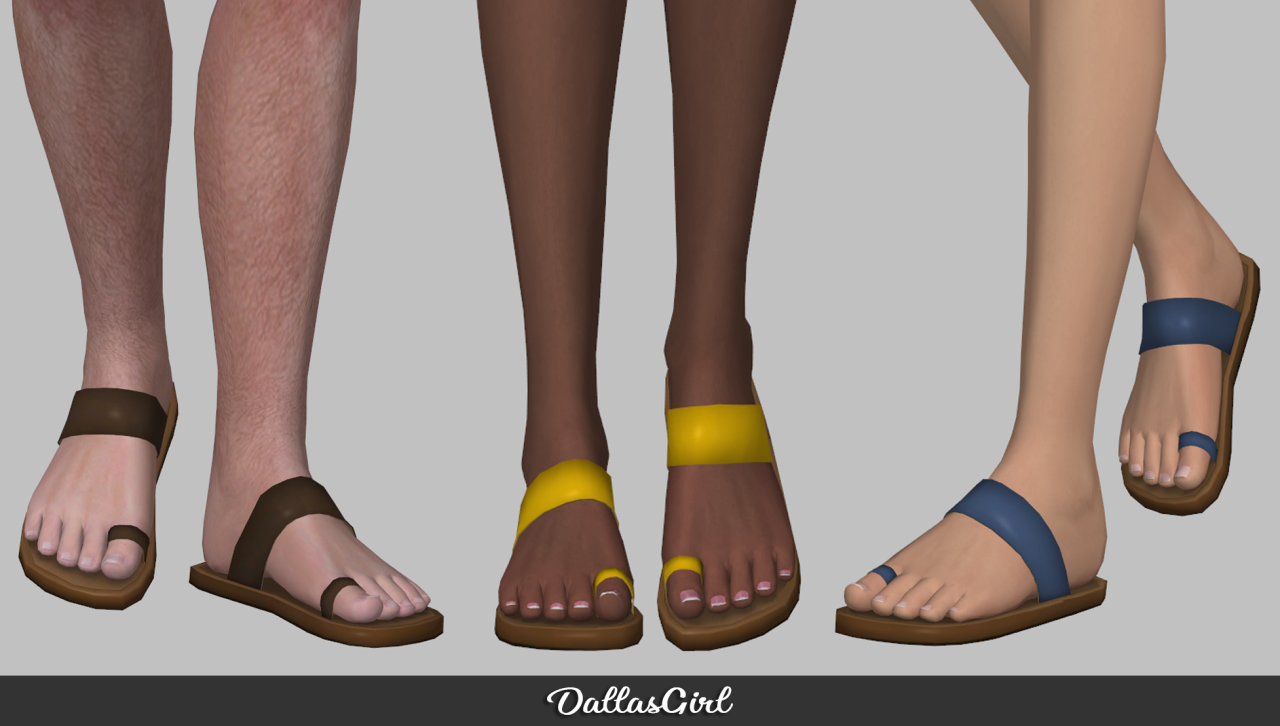
Alegre Sandals
Mar 31, 2026

CHRISTMAS 2021: STARLIE STOMPERS
Mar 22, 2026

CHRISTMAS 2021: CLOVER OVERALLS
Mar 22, 2026
![[RIMINGS] Easy Day Stripe Set](https://64.media.tumblr.com/d67c38d7603b2e78b42cf851180a4df7/8984c8b0304b2e7f-5a/s1280x1920/da1b95adfb3352e55ce3d9cba715e433807b6443.png)
[RIMINGS] Easy Day Stripe Set
Mar 31, 2026
Related Articles

Best Sims 4 Vampire CC: Fangs, Clothing & Dark Aesthetics (2026)
Vampires need the right look. From sharp fangs to gothic formal wear, this vampire CC guide has everything to build your ultimate creature of the night.
Best Sims 4 CC Clothing Creators You Need to Know
Tired of digging through endless Tumblr pages? Here are the Sims 4 CC clothing creators you should be following in 2026 — Sentate, Trillyke, Greenllamas, and more, with what makes each of them essential.

How to Build a Cottagecore Wardrobe in Sims 4 with CC
Ready to make your Sims live their best mushroom-foraging life? Here's how to build a full cottagecore wardrobe with CC — prairie dresses, linen sets, cozy knits, and the creators who make the aesthetic sing.

Sims 4 CC Wedding Dresses and Formal Wear Guide
EA's wedding dresses are about as exciting as a beige napkin. Upgrade your Sims' big day with CC that actually looks bridal — gowns, tuxedos, and the creators who make formal wear worth wearing.